The SOLIDWORKS Toolbox is often upgraded automatically when you upgrade your SOLIDWORKS installation, but there are situations where it may not be. In an environment where the Toolbox is saved to a shared, central location, there may be controls in place protecting it from automatic upgrades.
Regardless of the why, it’s important to know how to upgrade the SOLIDWORKS Toolbox to ensure that your customizations are carried over and everyone is using the most up-to-date version.
Before You Begin
Before performing an upgrade to the toolbox, you need to protect yourself in case you need to rollback by performing a backup.
The easiest way to do this is to compress the entire Toolbox installation to a zipped folder and store it in a secure location. It is critical to copy the entire SOLIDWORKS Data folder and include it in the backup.
If your SOLIDWORKS Toolbox is stored in a SOLIDWORKS PDM vault, the upgrade process follows its own steps.
How to Upgrade the SOLIDWORKS Toolbox
With a backup complete, it’s time to perform the manual upgrade on the SOLIDWORKS Toolbox.
Step 1: Upgrading the swbrowser.sldedb File
The first step of upgrading the Toolbox is to upgrade the swbrowser.sldedb file that contains the Toolbox database. The file paths listed below are the default installation locations, so your specific instance may reside in a different location.
- Navigate to C:\Program Files\SOLIDWORKS Corp\SOLIDWORKS\Toolbox\data utilities.
- Run the UpdateBrowserDatabase executable as an administrator to launch the Update Toolbox Database program.
 The Update Toolbox Database utility
 - Set the Database To Upgrade selection to your current Toolbox database.
- Set the Updating Database selection to the newly installed Toolbox database.
 Changing the affected Toolbox database
 - Click Update to begin the Toolbox database upgrade.
- Verify the upgrade has completed by reviewing the error log located at C:\Program Files\SOLIDWORKS Corp\SOLIDWORKS\Toolbox\data utilities\UpdateBrowserDataErrors.txt before proceeding to the next step.
Key Considerations With This Step
To ensure the database is successfully upgraded, keep the following things in mind:
- Ensure that the Database Version variable is the lower of the two selected. If it is not, switch your selections around.
- Ensure that the versions correspond to your SOLIDWORKS installations.
- SOLIDWORKS 2026 corresponds to version 29.00.
- SOLIDWORKS 2025 corresponds to version 28.00.
- SOLIDWORKS 2024 corresponds to version 27.00.
- If errors persist in the log file, proceed to the troubleshooting steps listed below.
Step 2: Run SOLIDWORKS Toolbox Update
The next step of upgrading the Toolbox is to run the SOLIDWORKS Toolbox Update utility. The file paths listed below are the default installation locations, so your specific instance may reside in a different location.
- Navigate to the installation folder of SOLIDWORKS located at C:\Program Files\SOLIDWORKS Corp\SOLIDWORKS.
- Run the sldtoolboxupdater executable.
- Click Process to begin the SOLIDWORKS Toolbox upgrade.
- Green check marks will appear next to the different standards to verify that the upgrade was successful.
 A completed SOLIDWORKS Toolbox update
Key Considerations With This Step
To ensure the toolbox is successfully upgraded, keep the following things in mind:
- Select the box labeled to Show completed updates to monitor progress as the update continues.
- If you are missing a Toolbox standard or want to add a new one, select SOLIDWORKS/Toolbox installation media location… to navigate to additional Toolbox standards.
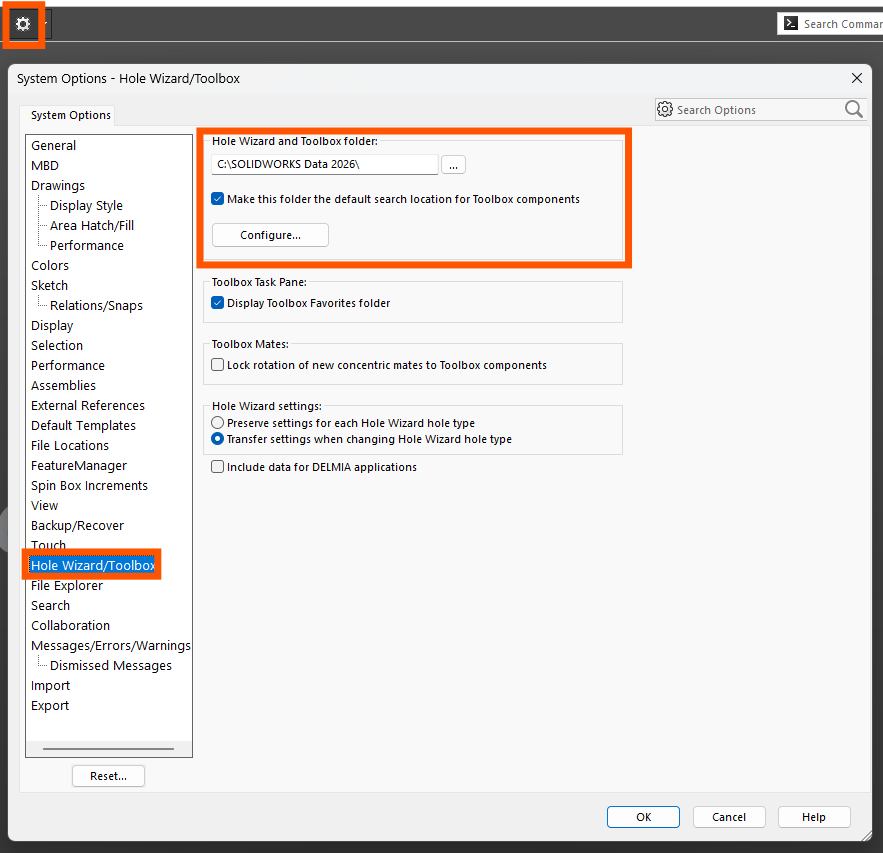
- Ensure the update is successful by verifying that the Toolbox path is shown correctly in the SOLIDWORKS System Options.
 Checking the SOLIDWORKS Toolbox path in the System Options
Troubleshooting Upgrading the SOLIDWORKS Toolbox
If you experience any issues during the update process, there are a few common causes that can be quickly fixed.
Toolbox Is Not The Expected Version
A common error message reads “Toolbox is not the expected version” and occurs when you are navigating to the SOLIDWORKS System Options or when upgrading the database in step one.

“Toolbox is not the expected version…” error message
If you run into the error message, consider the following:
- Make sure you are running the UpdateBrowserDatabase.exe as an administrator. Sometimes the application will appear to have updated, but it will only succeed when run as an administrator.
- If you have run as an administrator and it still has not updated successfully, make sure you have write access to the UpdateBrowserDatabase application. This can be checked by right-clicking the file, selecting Properties > Security, and checking whether your user account/group has read and write access.
Red X Appears in Toolbox Updates
During step two above, you may notice that a Toolbox standard fails to upgrade and is shown with a red X next to it.

A SOLIDWORKS Toolbox standard update failed
If you run into this, consider the following:
- In the Toolbox\browser folder, delete or rename the ToolboxFiles.index file. Also, delete or rename the entire Toolbox\updates folder. Rerun the sldtoolboxupdater.exe.
- Run the sldtoolboxupdater.exe and select SOLIDWORKS/Toolbox installation media location. Navigate to the source or download files for the new major version of SOLIDWORKS, select the Toolbox\updates folder, and click OK.
- Obtain a new copy of the download files for SOLIDWORKS, follow the above test using the new media location, and run the update again.
Further Help with a SOLIDWORKS Toolbox Update
The steps outlined above will help you manually upgrade the SOLIDWORKS Toolbox and troubleshoot common errors that may present themselves during the upgrade process. However, the troubleshooting listed is not an exhaustive list, so our dedicated Technical Support team is standing by to help.
Should any of the troubleshooting steps be unsuccessful, or if you have other questions about upgrading your Toolbox, please share a copy of the following files with our support team for further investigation:
-
-
- C:\Program Files\SOLIDWORKS Corp\SOLIDWORKS\Toolbox\data utilities\UpdateBrowserDataErrors.txt
- C:\Program Files\SOLIDWORKS Corp\SOLIDWORKS\Toolbox\updates\UpdateLog.txt
- Your original, backed-up Toolbox folder.
-
To log a ticket with our Technical Support team, click here.
PakarPBN
A Private Blog Network (PBN) is a collection of websites that are controlled by a single individual or organization and used primarily to build backlinks to a “money site” in order to influence its ranking in search engines such as Google. The core idea behind a PBN is based on the importance of backlinks in Google’s ranking algorithm. Since Google views backlinks as signals of authority and trust, some website owners attempt to artificially create these signals through a controlled network of sites.
In a typical PBN setup, the owner acquires expired or aged domains that already have existing authority, backlinks, and history. These domains are rebuilt with new content and hosted separately, often using different IP addresses, hosting providers, themes, and ownership details to make them appear unrelated. Within the content published on these sites, links are strategically placed that point to the main website the owner wants to rank higher. By doing this, the owner attempts to pass link equity (also known as “link juice”) from the PBN sites to the target website.
The purpose of a PBN is to give the impression that the target website is naturally earning links from multiple independent sources. If done effectively, this can temporarily improve keyword rankings, increase organic visibility, and drive more traffic from search results.
Jasa Backlink
Download Anime Batch


